
Understanding the Dashboard
Understanding the Dashboard
Section titled “Understanding the Dashboard”The CloudFlex Broadcast Dashboard provides a centralized view of all your production environments, studios, and connected resources.
It’s designed to give you quick access to everything you manage — from instances to video feeds — in a single, streamlined interface.
🧭 Overview
Section titled “🧭 Overview”When you first log into CloudFlex Broadcast, you’ll land on the Dashboard.
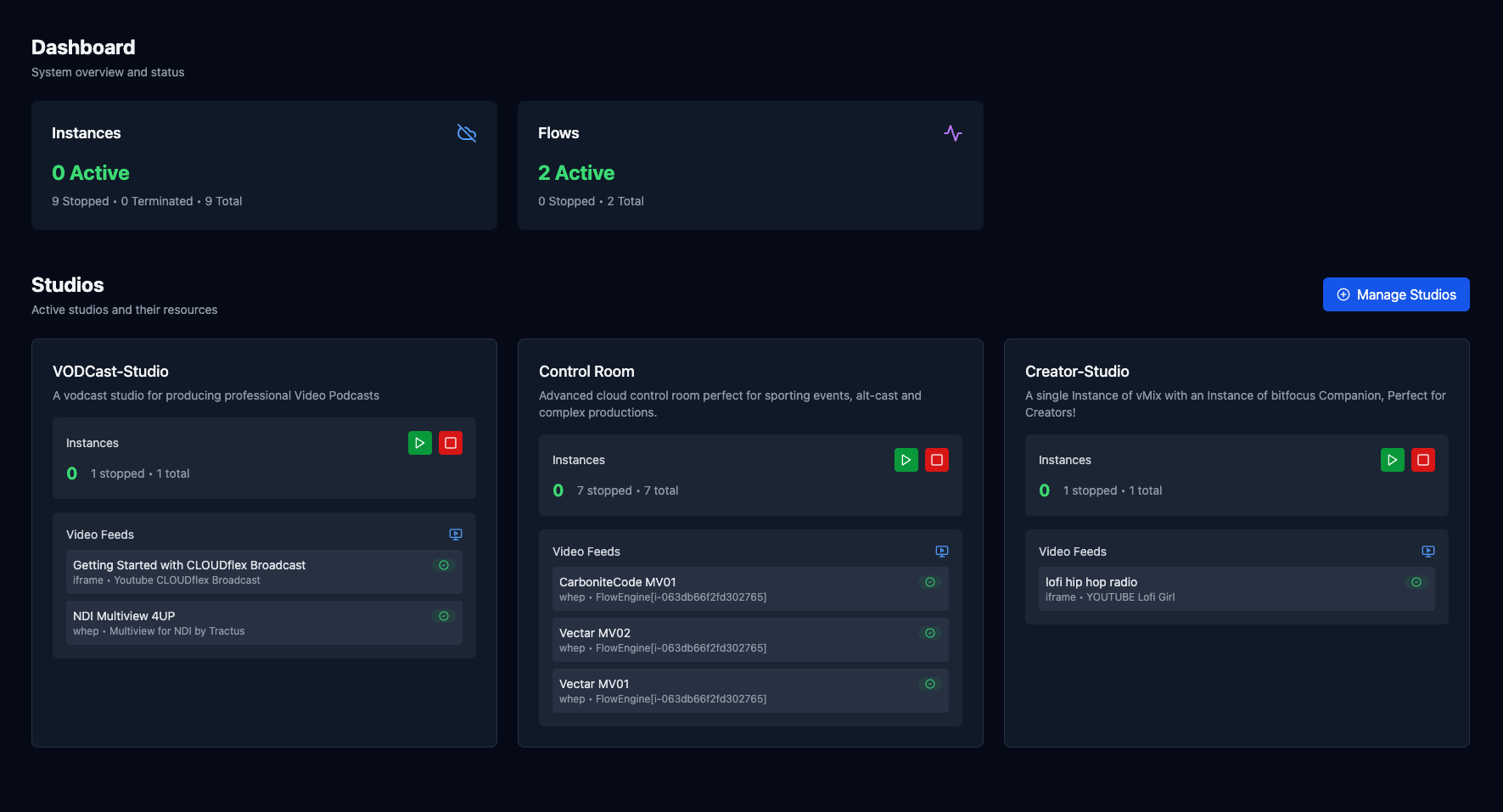
This interface gives you a real-time snapshot of your system, including:
- Active and stopped instances
- Studios assigned to your account
- Available video feeds and monitoring tools
At the very top of the dashboard, you’ll find your Applications section.
From here, you can access the primary components of your account — typically Instances, Flows, and Feeds.
🎬 Studios
Section titled “🎬 Studios”Below the applications area, you’ll see the Studios section.
This is where all studios associated with your account are displayed.
Each studio card includes:
- Active Instances – Number of currently running instances.
- Stopped Instances – Number of instances that are powered off.
- Total Instances – Total instances in that studio.
You can also take bulk actions directly from this view:
- ▶️ Start All Instances – Launch all instances in the studio.
- ⏹️ Stop All Instances – Safely shut down all instances in the studio.
🎥 Video Feeds
Section titled “🎥 Video Feeds”Each studio may also contain associated Video Feeds, representing your live or test video environments.
From the dashboard, you can:
- Open Getting Started resources for quick setup.
- Launch a Multi-View feed viewer to monitor all active feeds in that environment.
This lets you jump directly into monitoring without digging into individual instance settings.
⚙️ Managing Studios
Section titled “⚙️ Managing Studios”On the right-hand side of the dashboard, you’ll find Manage Studios.
Selecting this option takes you to the Studio Settings area, where you can:
- Modify configuration settings for existing studios.
- Create new studios for additional environments or clients.