
Members and invitations
Only owners and administrators can open Organization Settings.
Invite a Member
Section titled “Invite a Member”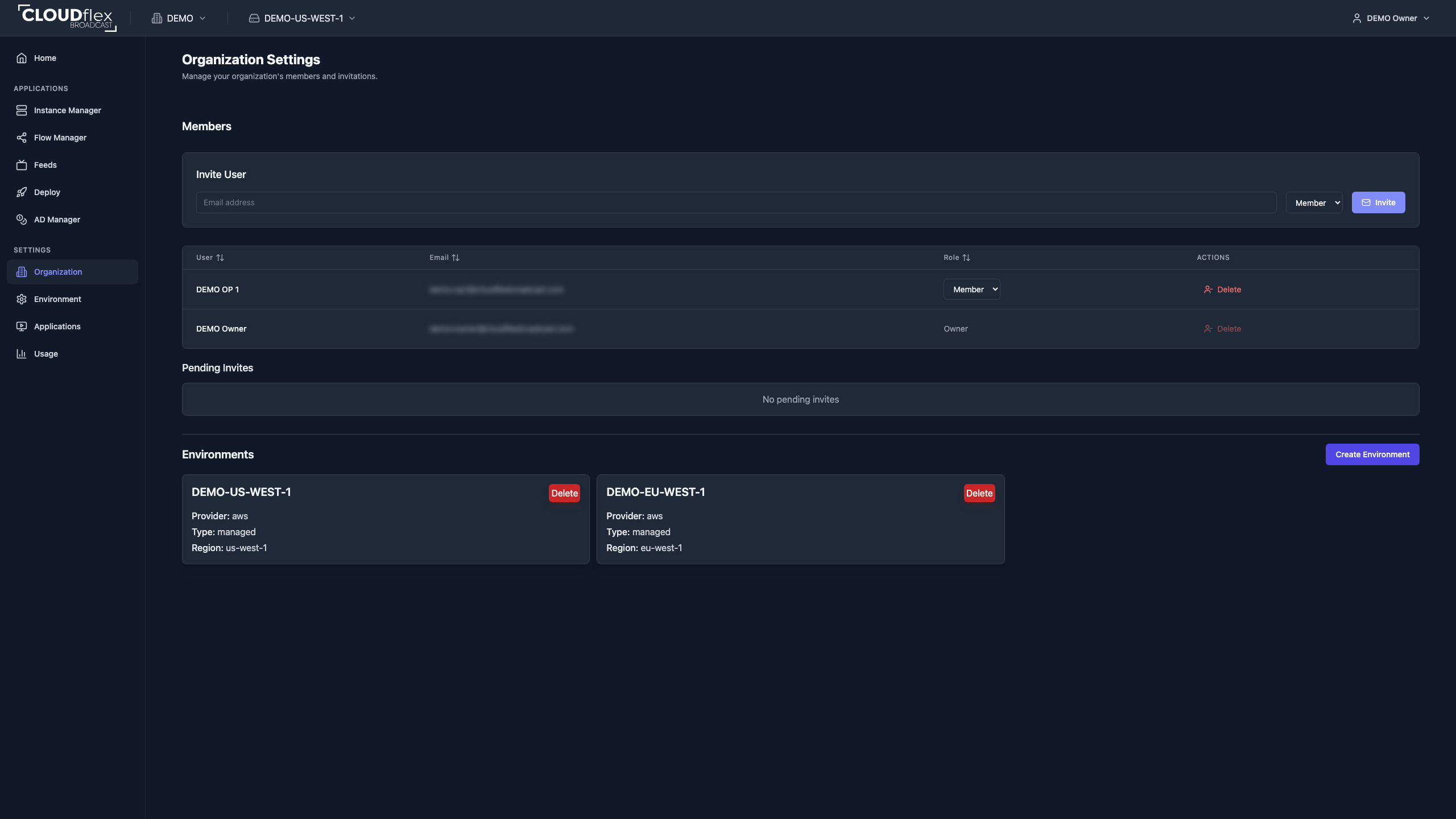
- Open Organization Settings.
- Under Members, enter the user’s email address.
- Choose Member or Admin.
- Select Invite.
Use Member for operators who should receive scoped environment permissions. Use Admin only for people who must manage organization and environment configuration.
Pending invitations show their email, role, status, and expiration. Cancel an invitation if it was sent to the wrong address or is no longer required.
Assign Roles and Permissions
Section titled “Assign Roles and Permissions”The role selected when inviting a member controls their organization-level access. After the member joins, configure any application and studio access they need separately in the appropriate environment.
See Roles and permissions for role and permission details.
Time-Bound Access
Section titled “Time-Bound Access”Application permissions can include start and end dates. Use time-bound access for freelancers, temporary crew, or anyone who needs access only during a production window. Allow enough time for setup, rehearsal, expected overrun, and recovery work.
See Time-bound access for setup and production-planning guidance.
Maintain Membership
Section titled “Maintain Membership”From the members table, an administrator can change a member between the Admin and Member roles or remove the member from the organization. Removing a member revokes their organization membership; review any active production assignment first.