
Deploy Manager
Deploy Manager launches approved infrastructure templates in the active environment. It appears only when the application is enabled.
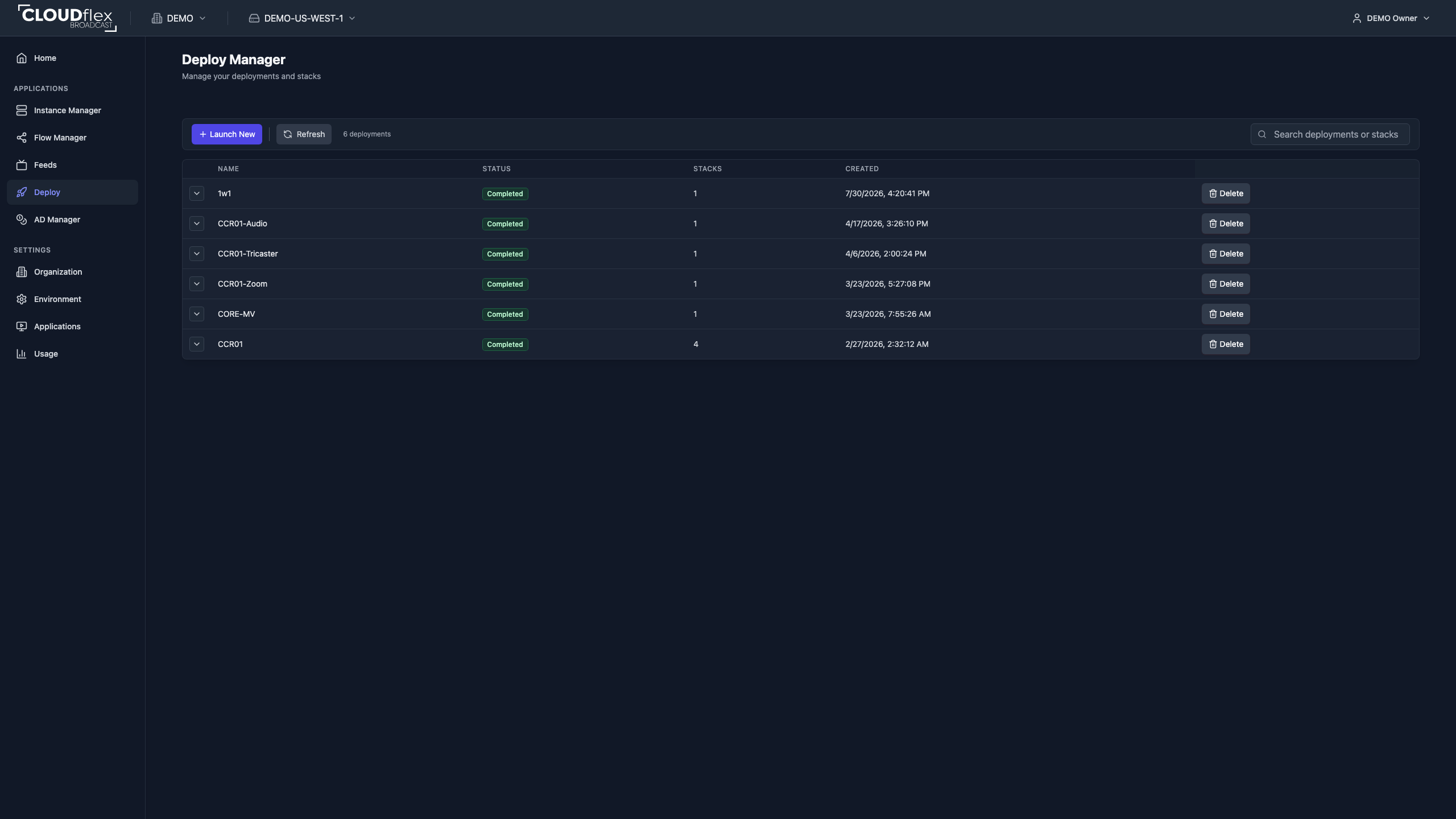
Launch a Deployment
Section titled “Launch a Deployment”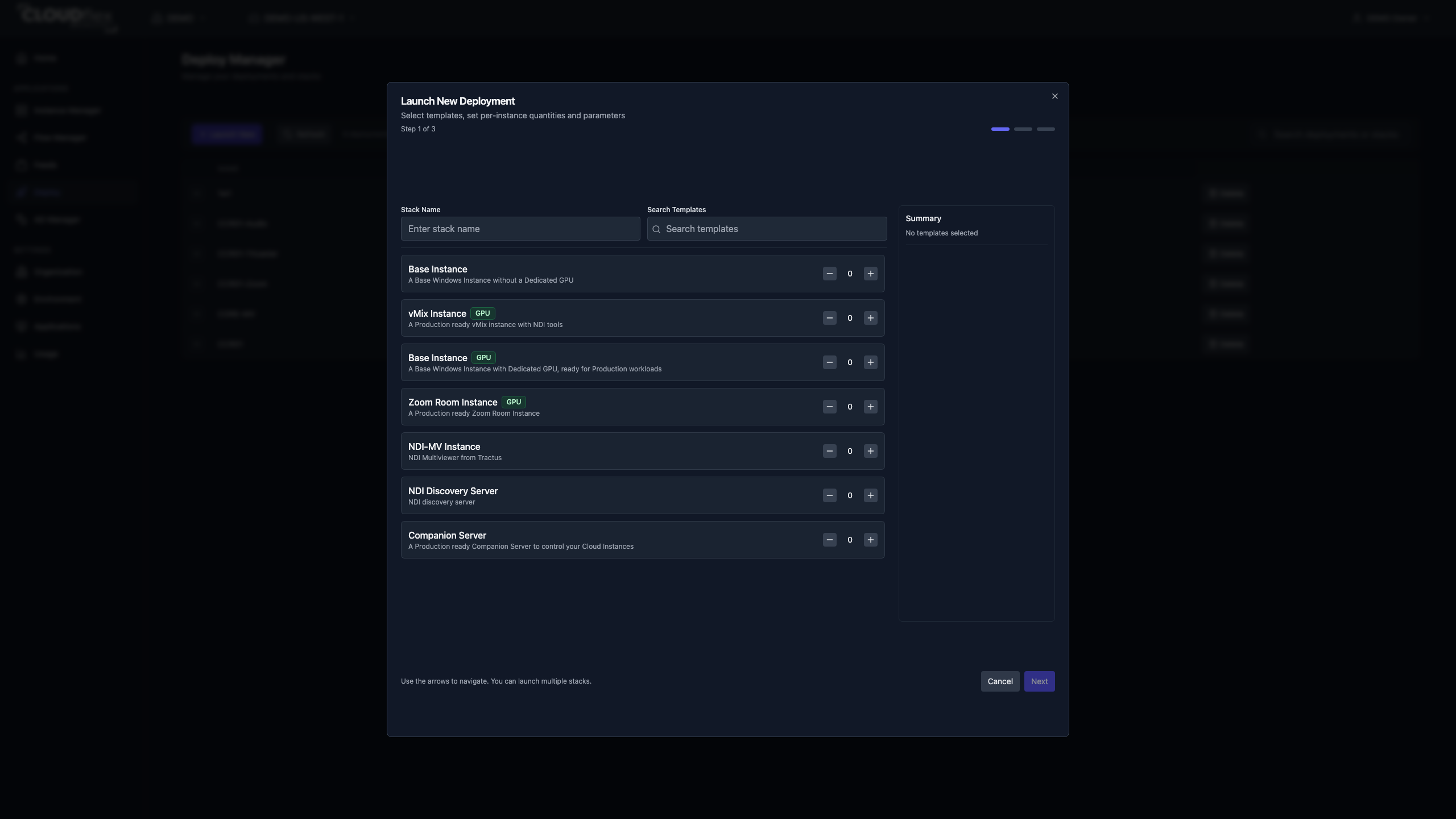
- Select Launch New.
- Enter a stack name.
- Choose one or more templates and set the quantity for each.
- Select Next.
- Review each instance. Enable an override only when a template default must change, then enter the permitted value.
- Review the summary and select Launch.
The available templates, parameters, providers, and defaults come from the environment configuration. Do not substitute values that have not been approved for the production.
Monitor or Delete a Deployment
Section titled “Monitor or Delete a Deployment”The table shows deployment name, status, stack count, and creation time. Expand a row to see its stacks and template status. Use search to find a deployment or stack and Refresh to request the latest state.
Deleting a deployment deletes its associated stacks and cannot be undone. Confirm that the resources are no longer carrying a production before continuing.
Prepare and Maintain Instances
Section titled “Prepare and Maintain Instances”After Deploy Manager creates the machines, use Instance Manager to confirm their network details, studio assignments, size, and storage before handing them to operators.
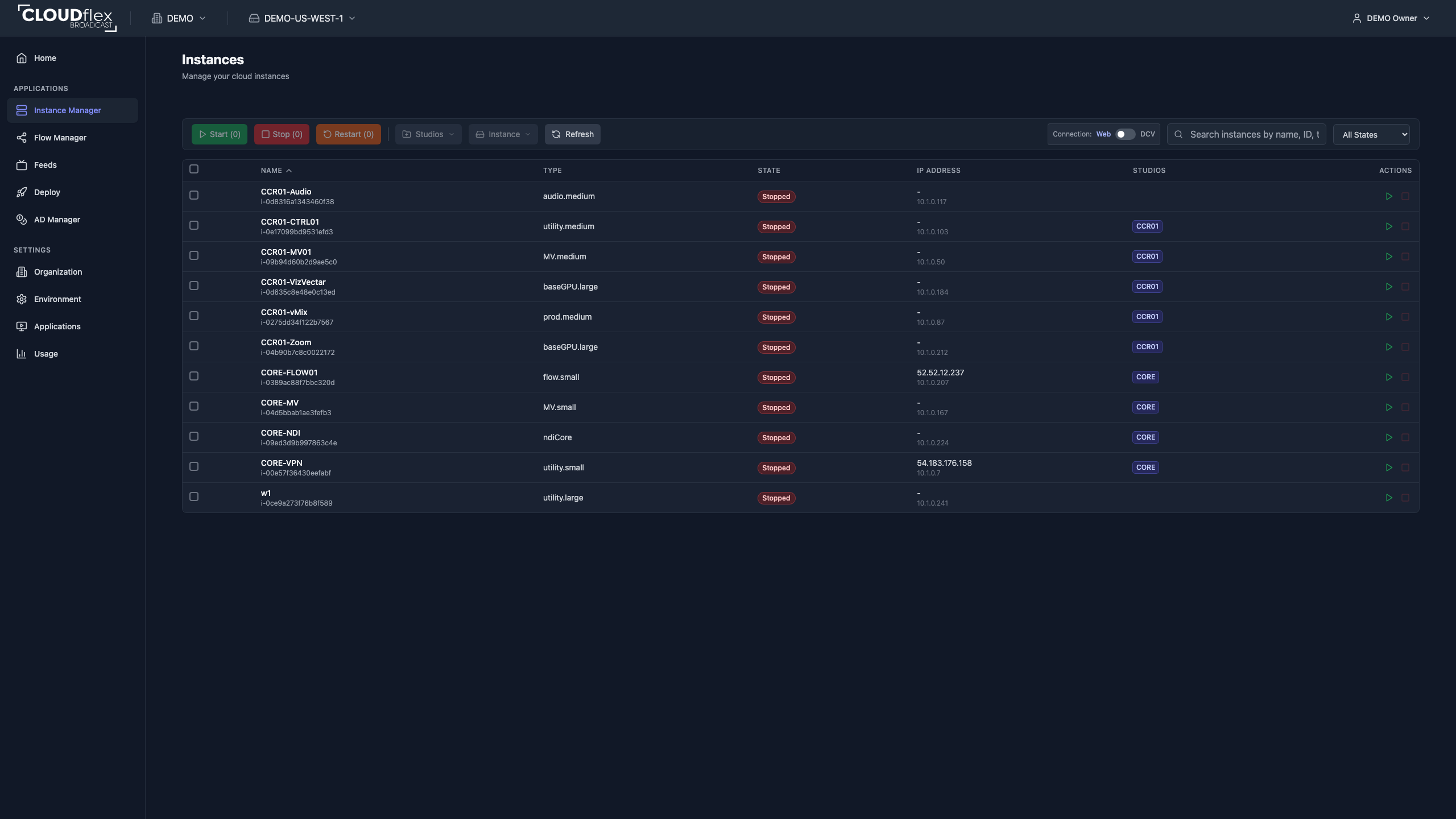
Read the Instance Manager list
Section titled “Read the Instance Manager list”Each row identifies the instance name and ID, instance type, state, IP addresses, studio assignment, and available actions.
The IP Address column can show two addresses:
- The upper address is the public IP address. Other networks may route to this address when the environment’s firewall, security-group, and application rules permit it. A public address does not by itself mean that every service is open or that the instance is safe to expose directly.
- The lower address is the private IP address used within the environment’s private network. Use it for traffic between connected production resources when they can route to that network. It is not normally reachable directly from the public internet.
- A dash in the public-address position means that the instance does not currently have a public IP address. The private address can still be present and usable inside the connected environment.
The controls on the right apply to that row. The green start control starts a stopped instance, and the red stop control stops a running instance. A control is unavailable when it does not apply to the current state. To work with several machines or open administrative actions, select the checkboxes at the left and use the action bar above the table.
To open a remote production session after the machine is ready, follow Connect to instances.
Other instance actions
Section titled “Other instance actions”Depending on the instance state and your permissions, the action bar can also:
- reboot running instances;
- rename one or several instances;
- change the instance type;
- assign instances to studios;
- manage attached drives;
- terminate instances.
Rename instances
Section titled “Rename instances”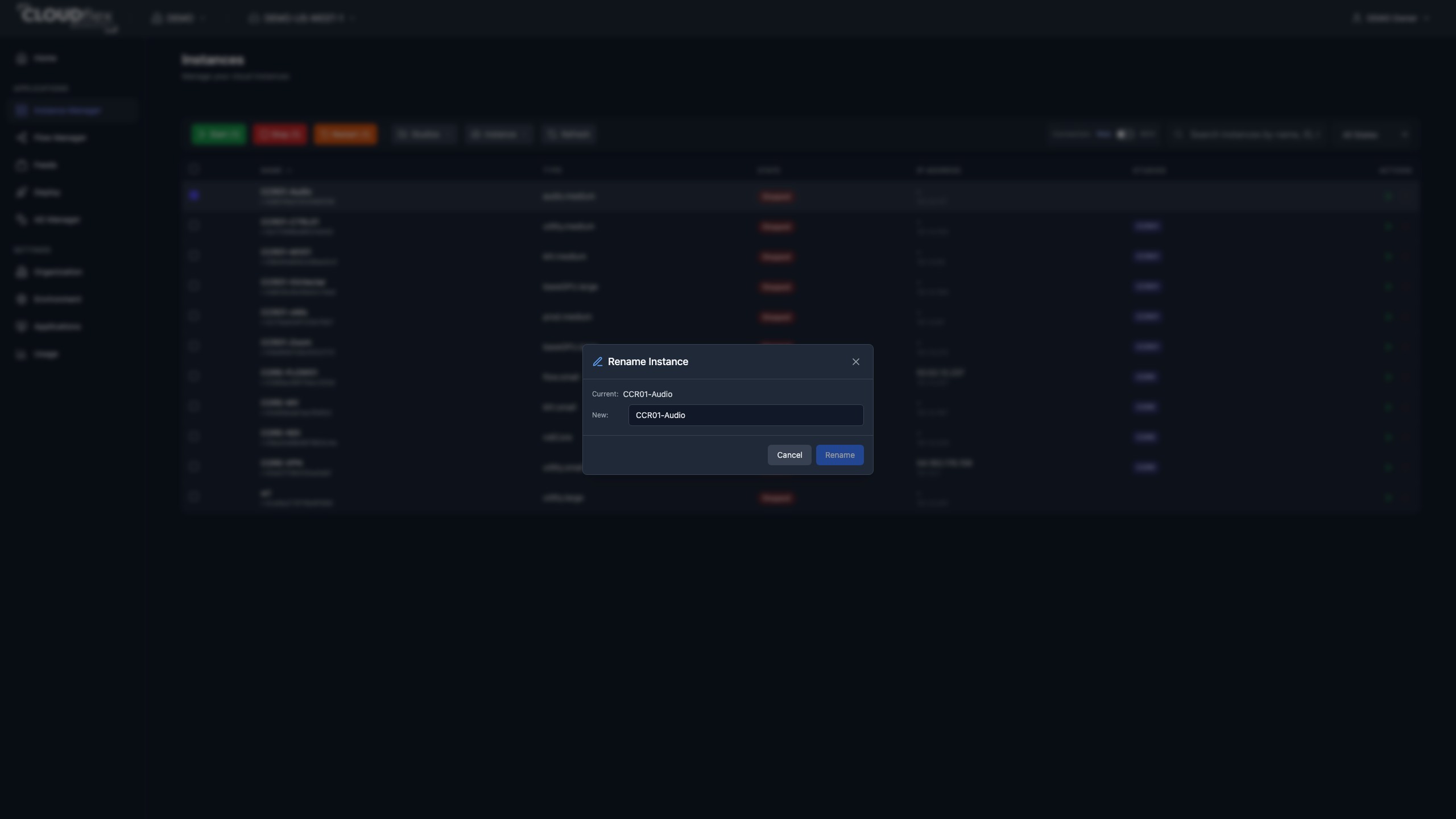
Select one or more instances, then open Instance and select Rename. Enter a new name for each selected instance and confirm the change.
Resize instances
Section titled “Resize instances”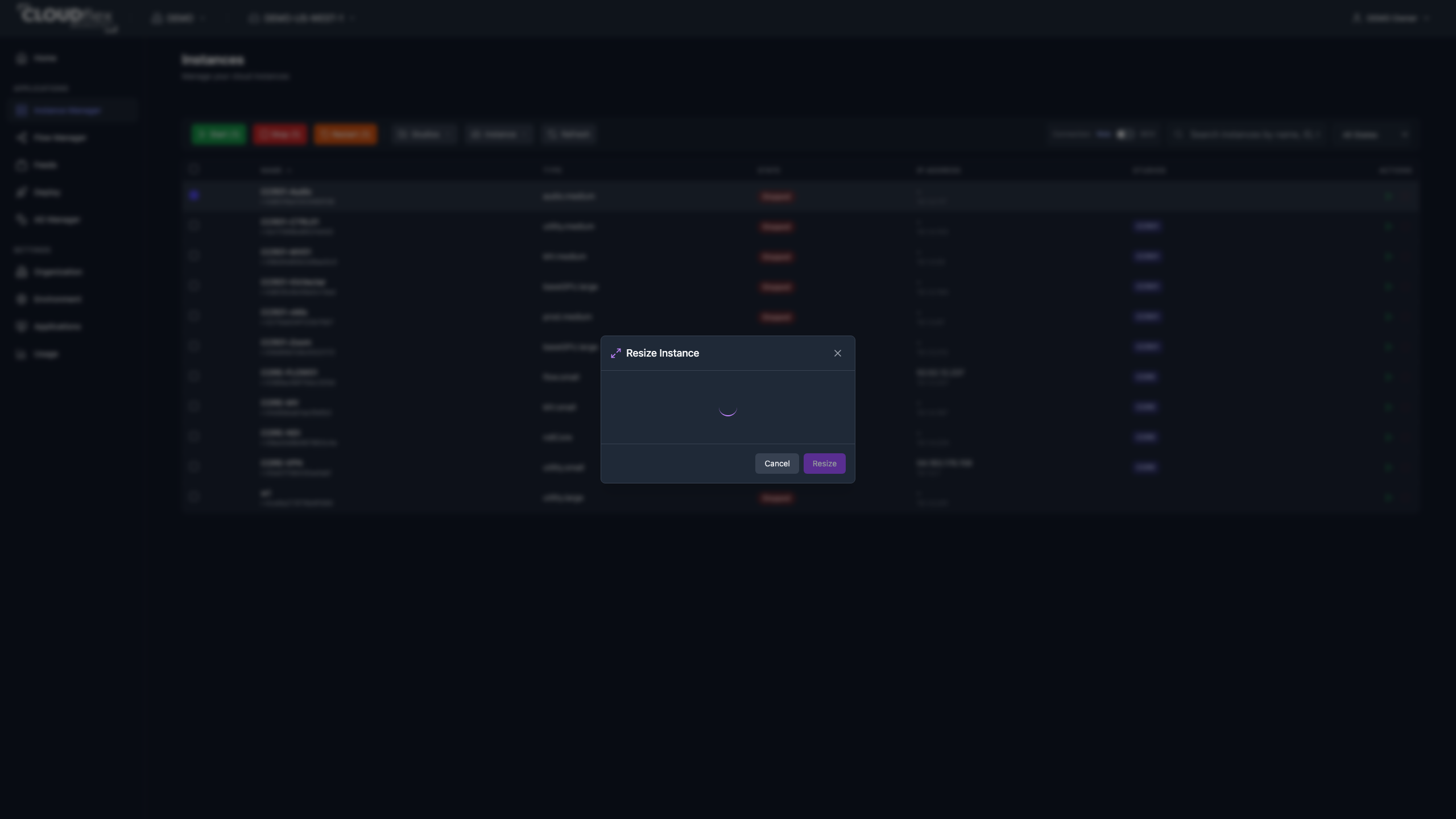
Stop the instances you want to resize. Select one or more instances of the same type, then open Instance and select Resize. Choose an available instance type and confirm the change. After the resize completes, start the instance and test the connection before handing it to an operator.
Manage drives New
Section titled “Manage drives ”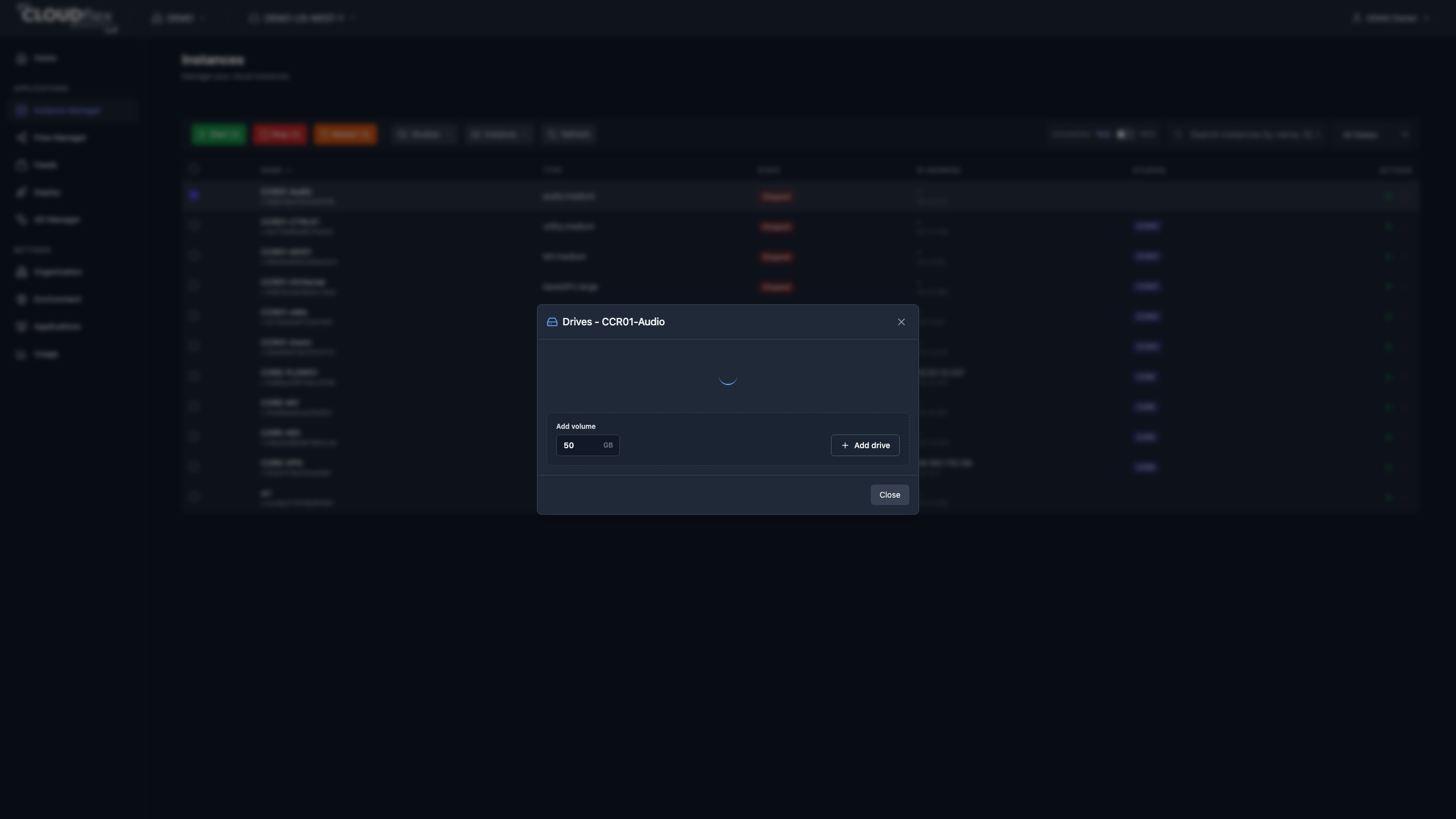
Select one instance, then open Instance and select Manage Drives to view its volume ID, mount point, type, and size.
- Add drive creates and attaches a data volume of the specified size.
- Resize only accepts a whole-number size larger than the current size.
- Delete detaches and permanently deletes a data drive.
- The root drive can be expanded, but it cannot be deleted in Studio.
When instance preparation is complete, use Connect to instances to verify the operator’s remote-access path.