
Show-day workflow
This workflow is for operators and engineers running a production that has already been built and tested.
Select the Production Context
Section titled “Select the Production Context”The organization and environment switchers at the top of Studio control which production resources you can see and operate. Confirm both before starting work, especially if you support more than one customer or production environment.
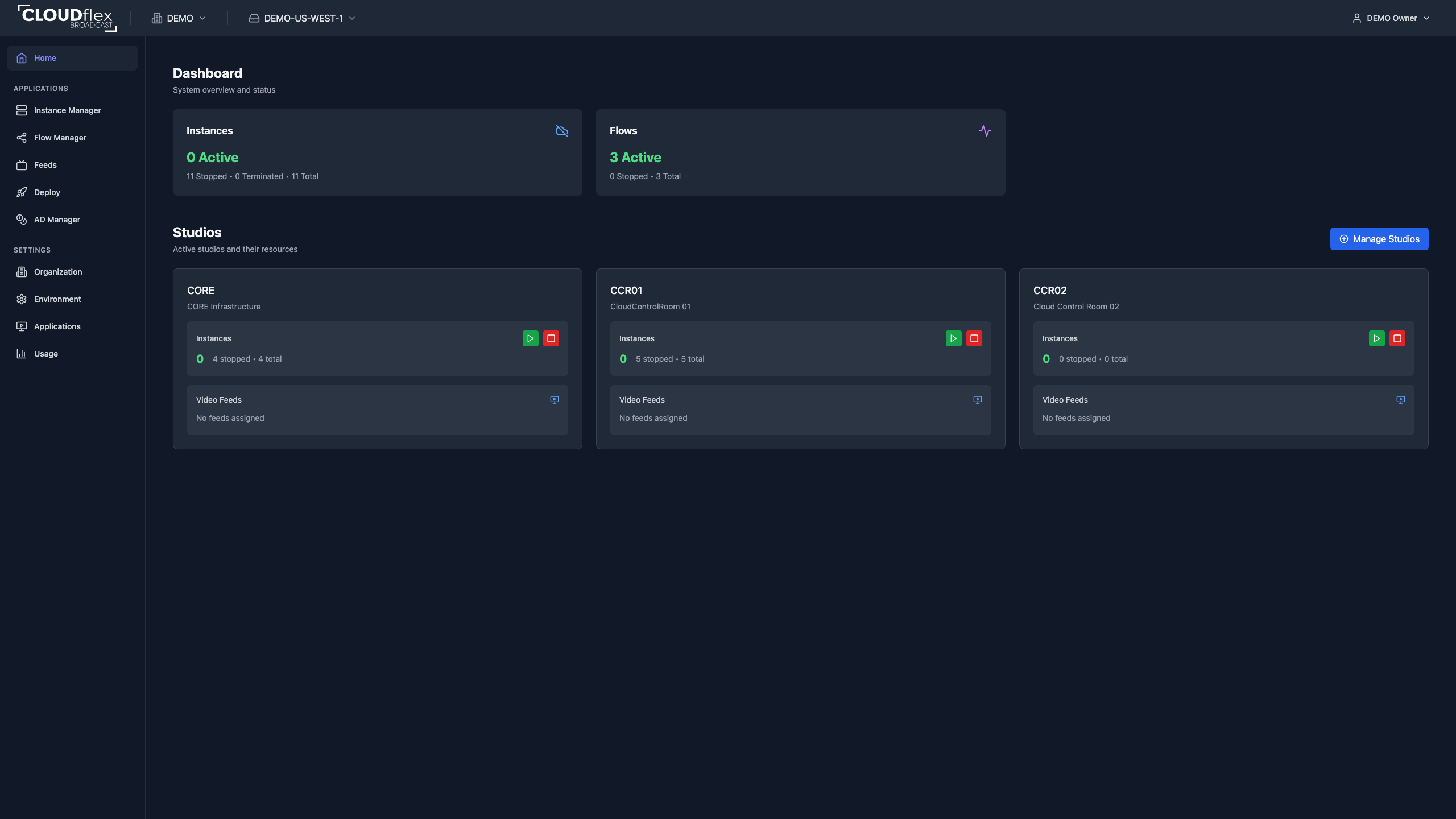
- Organization sets the customer or company context. Select the organization name to move to another organization you belong to. The environments available in Studio change with the organization.
- Environment sets the active operating boundary within that organization. Select the environment name to view another environment. The Dashboard, applications, studios, machines, flows, feeds, and usage shown in Studio belong to the active environment.
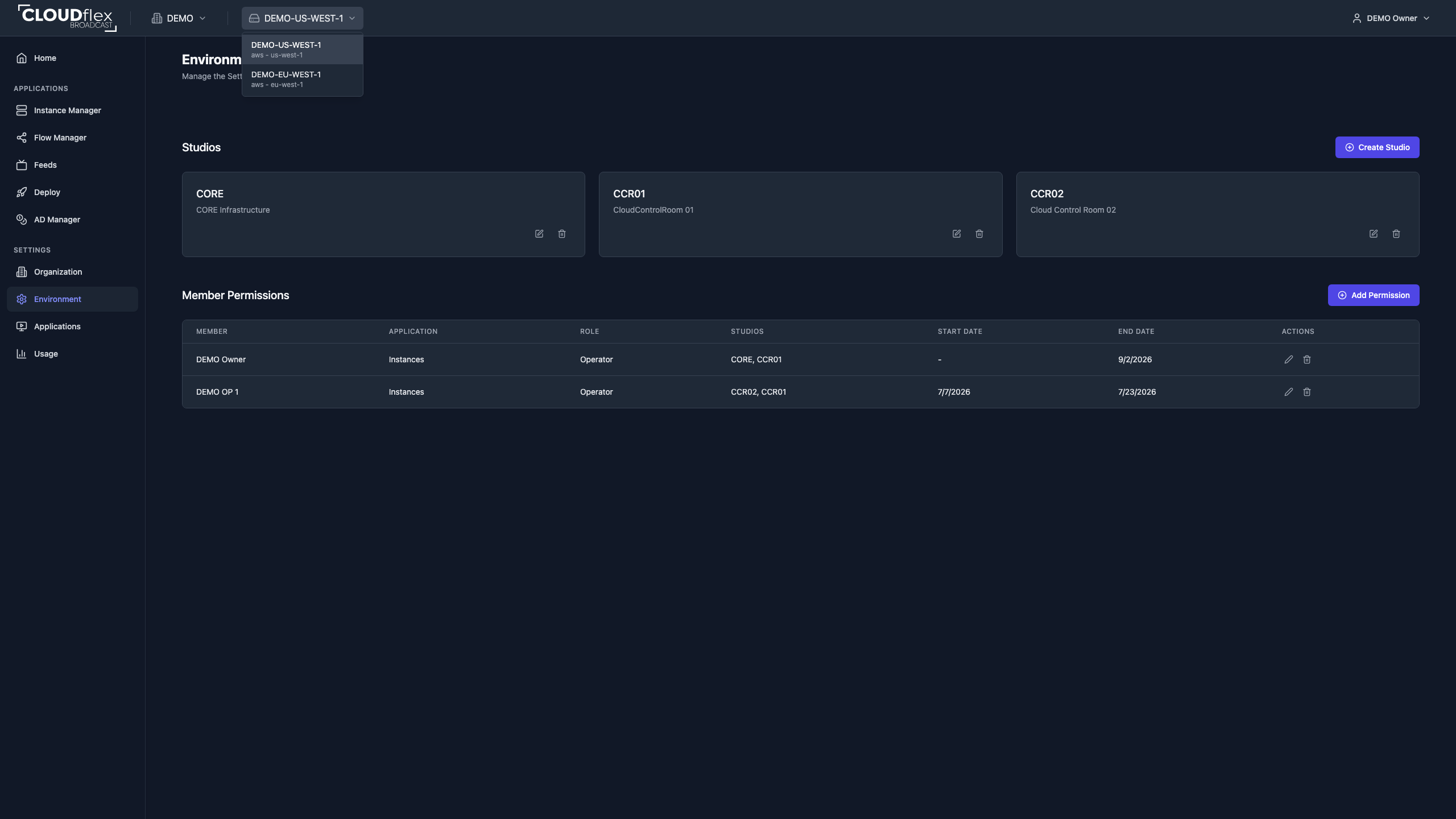
After switching, check the organization and environment names again and allow the Dashboard to refresh before taking a show-impacting action. If an expected organization or environment is missing, confirm your membership and access with an administrator.
Before You Begin
Section titled “Before You Begin”- Confirm the active organization, environment, and studio.
- Confirm your access window covers setup, rehearsal, the show, and likely overrun.
- Keep the production signal plan and recovery contacts available.
Start the Production
Section titled “Start the Production”- Open the Dashboard and review machine, flow, and engine status.
- Start only the machines required for the production.
- Wait for each machine to report
runningbefore connecting. - Start the required flows and confirm their inputs and outputs agree with the expected state.
- Open monitoring feeds and check picture and audio.
Connect Operators
Section titled “Connect Operators”Use the web interface for quick access or NICE DCV for the best interactive performance and multi-monitor operation. If a new DCV session is not ready, wait before trying again.
Monitor the Production
Section titled “Monitor the Production”- Watch the Dashboard for machine and flow state changes.
- Use available flow statistics such as uptime and bitrate.
- Treat a mismatch between a flow and its input or outputs as an item to investigate.
- Confirm the actual feed picture and audio; a configured online status is not an end-to-end signal test.
Make a Change During Production
Section titled “Make a Change During Production”Before restarting, stopping, resizing, or rerouting anything, confirm its role in the live path and the expected interruption.
End the Production
Section titled “End the Production”- Confirm recording and delivery have finished.
- Stop signal outputs and flows that should not remain active.
- Close operator sessions.
- Stop production machines and wait for
stopped. - Check every studio on the Dashboard for resources still running.
- Review Usage after records update and investigate unexpected activity.
Verify
Section titled “Verify”The production is closed when all intended outputs have ended, unused machines report stopped, and no unexpected resource remains active.
Troubleshooting
Section titled “Troubleshooting”Use Troubleshoot by symptom if a machine, connection, signal, or permission does not behave as expected.