
Feed Manager
Feed Manager keeps browser-viewable production feeds together in the active environment.
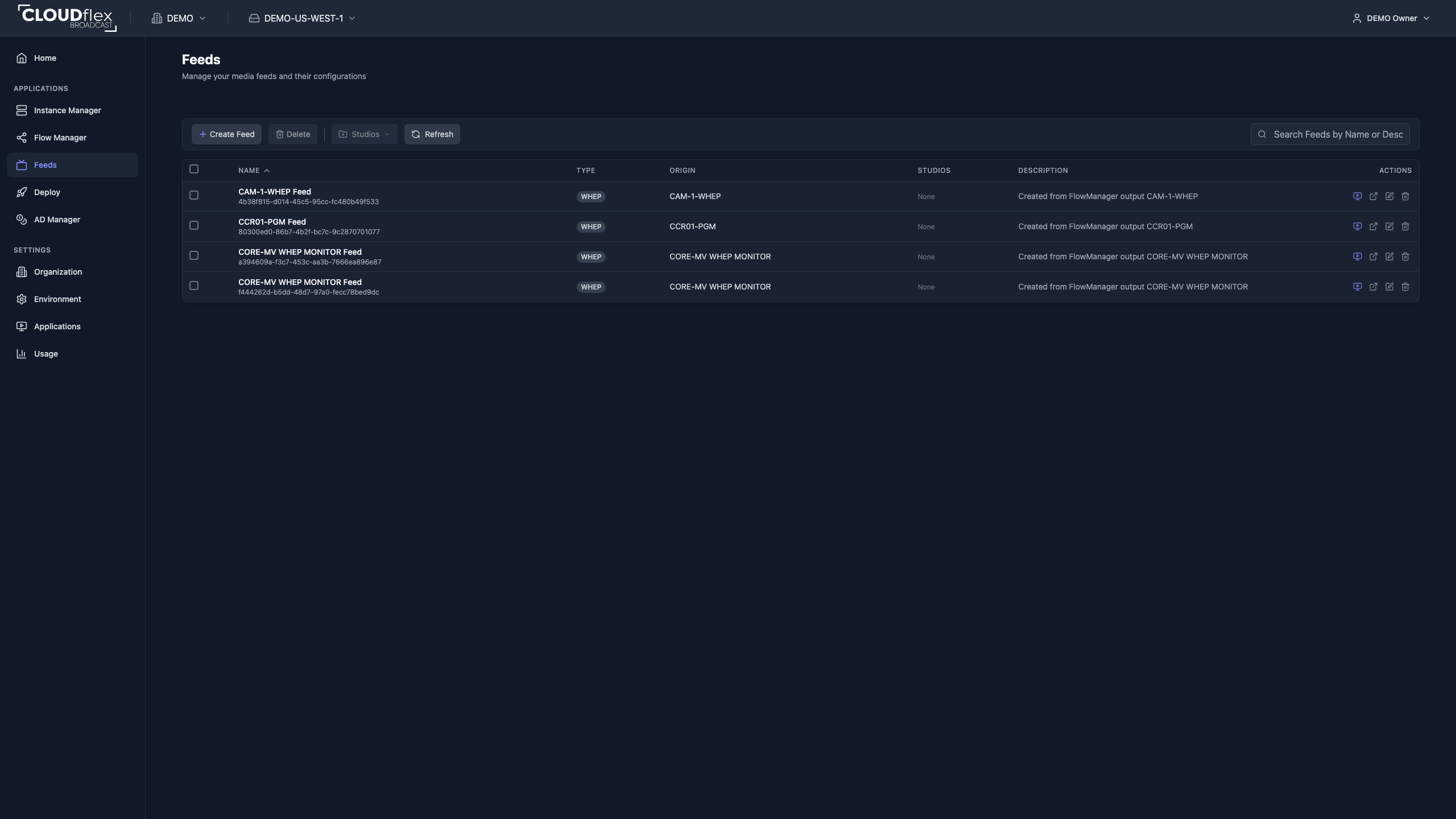
Create a Feed
Section titled “Create a Feed”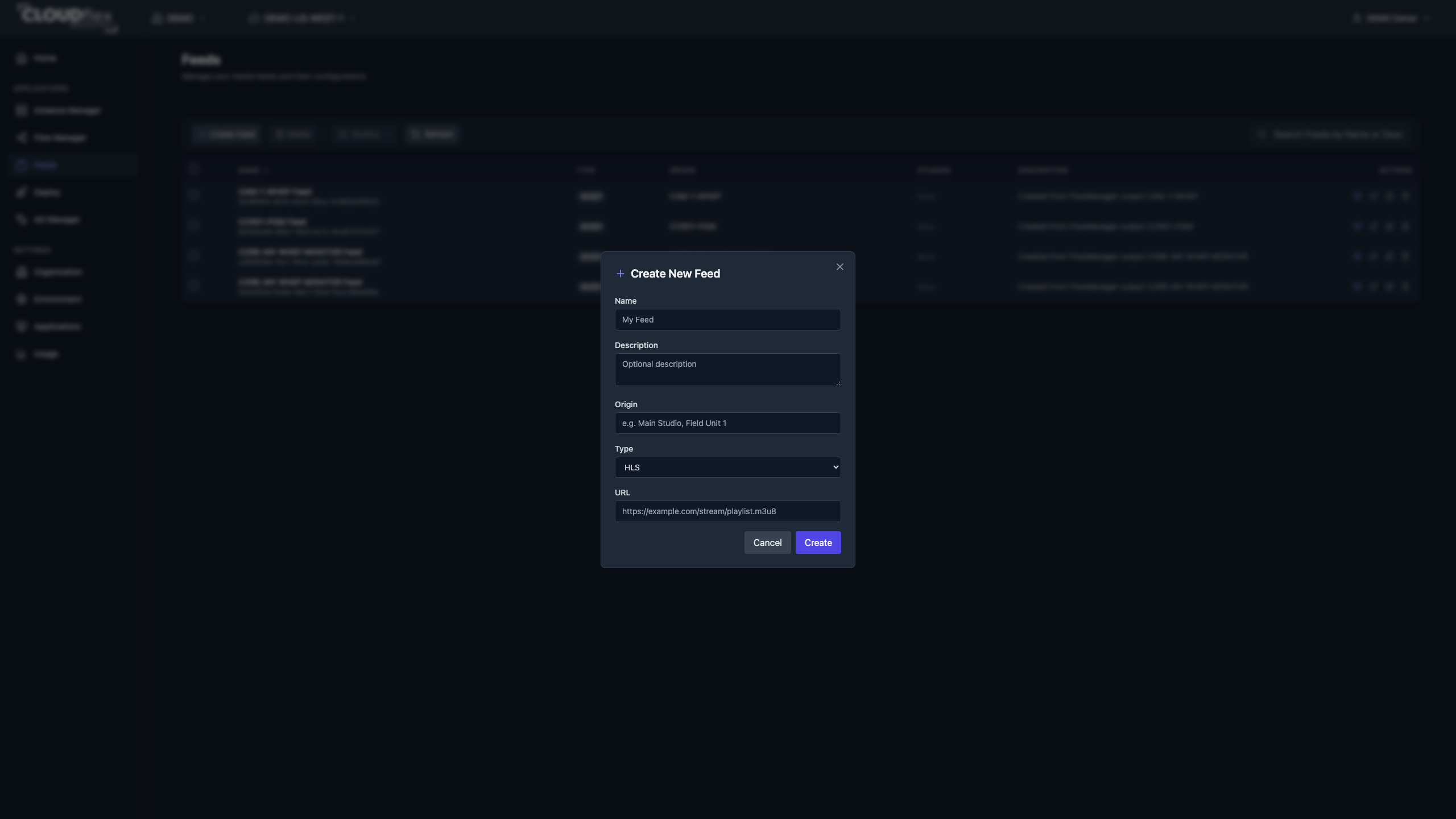
- Open Feed Manager and select Create Feed.
- Enter a name and optional description.
- Enter an origin label, such as a studio or field unit.
- Choose HLS, SLDP, WHEP, or iFrame.
- Paste the feed URL and save.
You can also create a feed from a configured WebRTC output in Flow Manager by selecting Copy to new Feed.
Choose a feed type
Section titled “Choose a feed type”- HLS accepts an HTTP or HTTPS playlist URL, normally ending in
.m3u8. It favors broad playback compatibility over low latency. - SLDP accepts an
sldp://source from a compatible streaming server. Use it when the production already provides SLDP playback. - WHEP accepts an HTTPS WHEP endpoint for near-real-time WebRTC monitoring. A saved WebRTC output in Flow Manager can populate this feed automatically through Copy to new Feed.
- iFrame accepts an HTTPS embed URL supplied by a compatible player or service. Use the player embed address, not the public page containing the player.
Name identifies the feed in Studio. Description is optional context for operators. Origin identifies where the signal comes from, such as a studio or field unit. URL must be reachable from the viewers’ networks.
View and Maintain Feeds
Section titled “View and Maintain Feeds”- Select Open to use the Studio feed viewer.
- Select Open in new tab to separate the viewer from Studio.
- Edit a feed to change its name, description, origin, type, URL, or online/offline status.
- Delete a feed when its source is no longer used.
Feed status is configured metadata; always confirm the actual picture and audio before relying on a feed for production monitoring.
Share a Feed
Section titled “Share a Feed”Select Share on the feed card and copy the generated view-only link. Anyone with the link may be able to open that feed without the normal Studio navigation, so send it only to intended viewers and treat it as production access.