
Flow Manager
Flow Manager routes signals through a configured flow engine. Each flow belongs to an engine and contains one input plus one or more outputs.
Read the Flow List
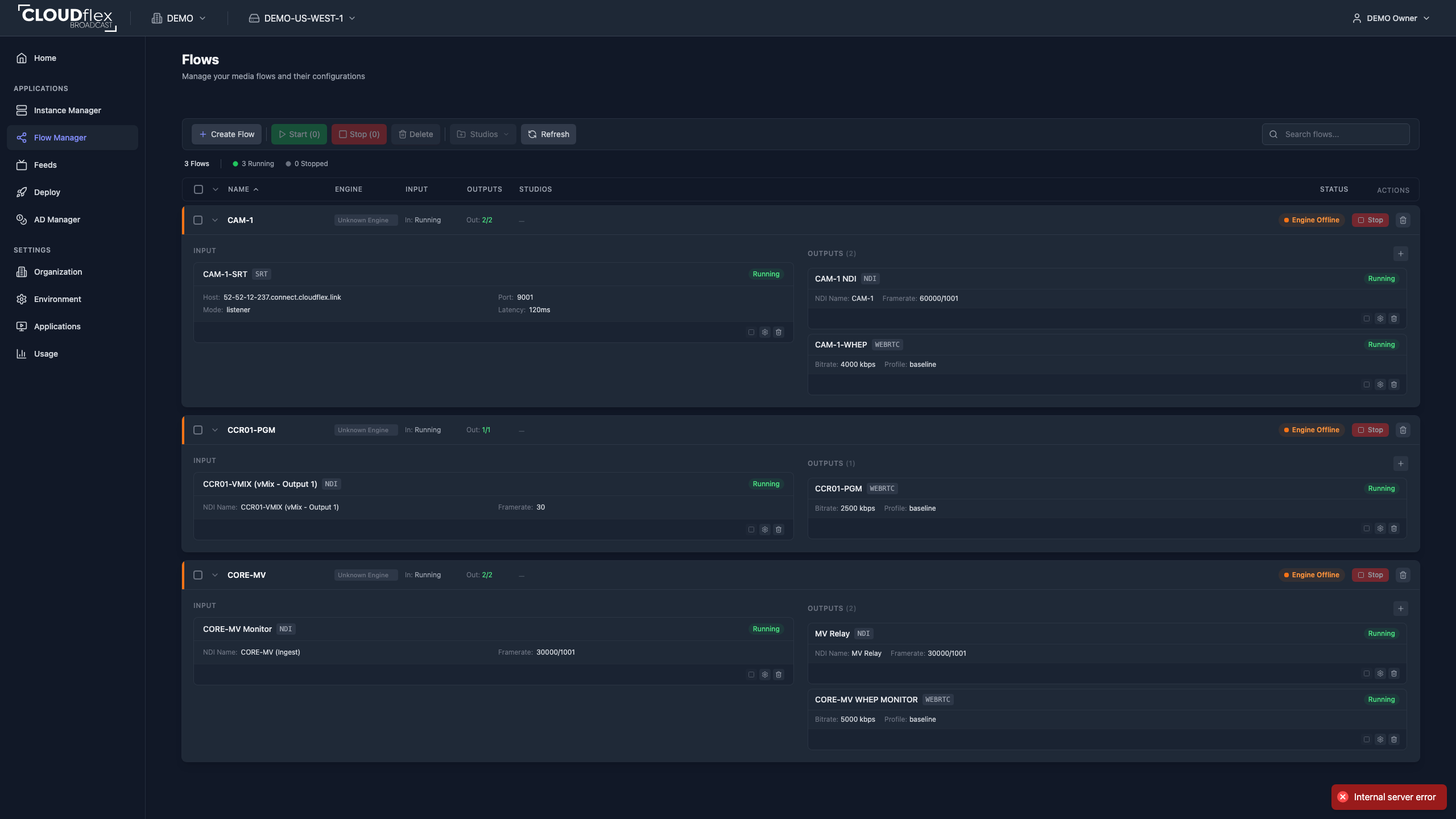
Section titled “Read the Flow List”The summary shows running, stopped, error, and engine-offline counts. Search covers flow names and configured input or output values. Sort the columns or collapse flows to keep a large production readable.
If a flow engine is offline, its flow controls are unavailable. Ask an administrator to check the engine before changing the flow.
Create a Flow
Section titled “Create a Flow”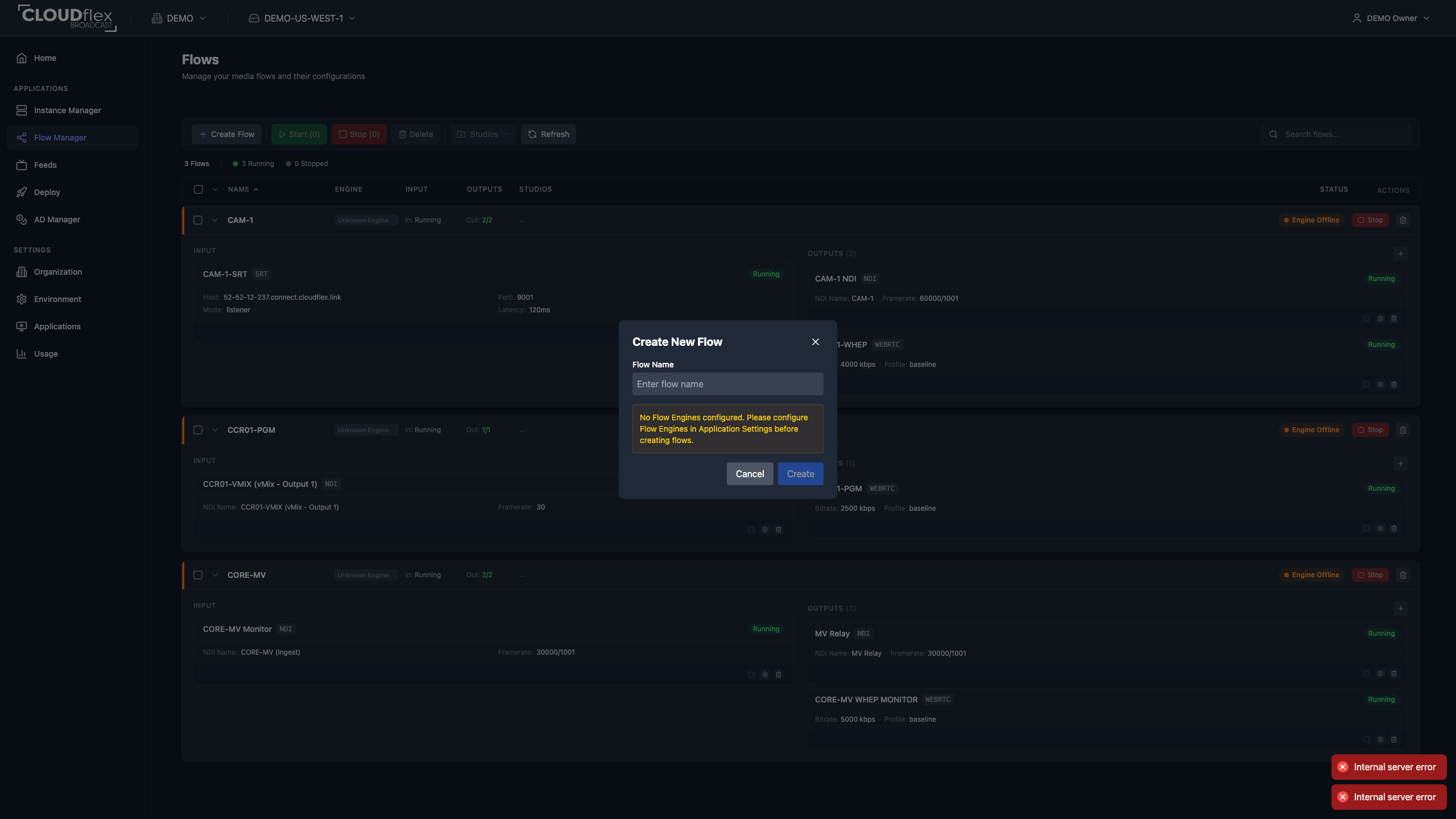
- Select Create Flow.
- Enter a clear flow name.
- Select the flow engine.
- Create the flow.
- Add and configure its input and outputs.
The protocols offered by the editor depend on the selected engine and whether you are adding an input or output.
Configure an Input or Output
Section titled “Configure an Input or Output”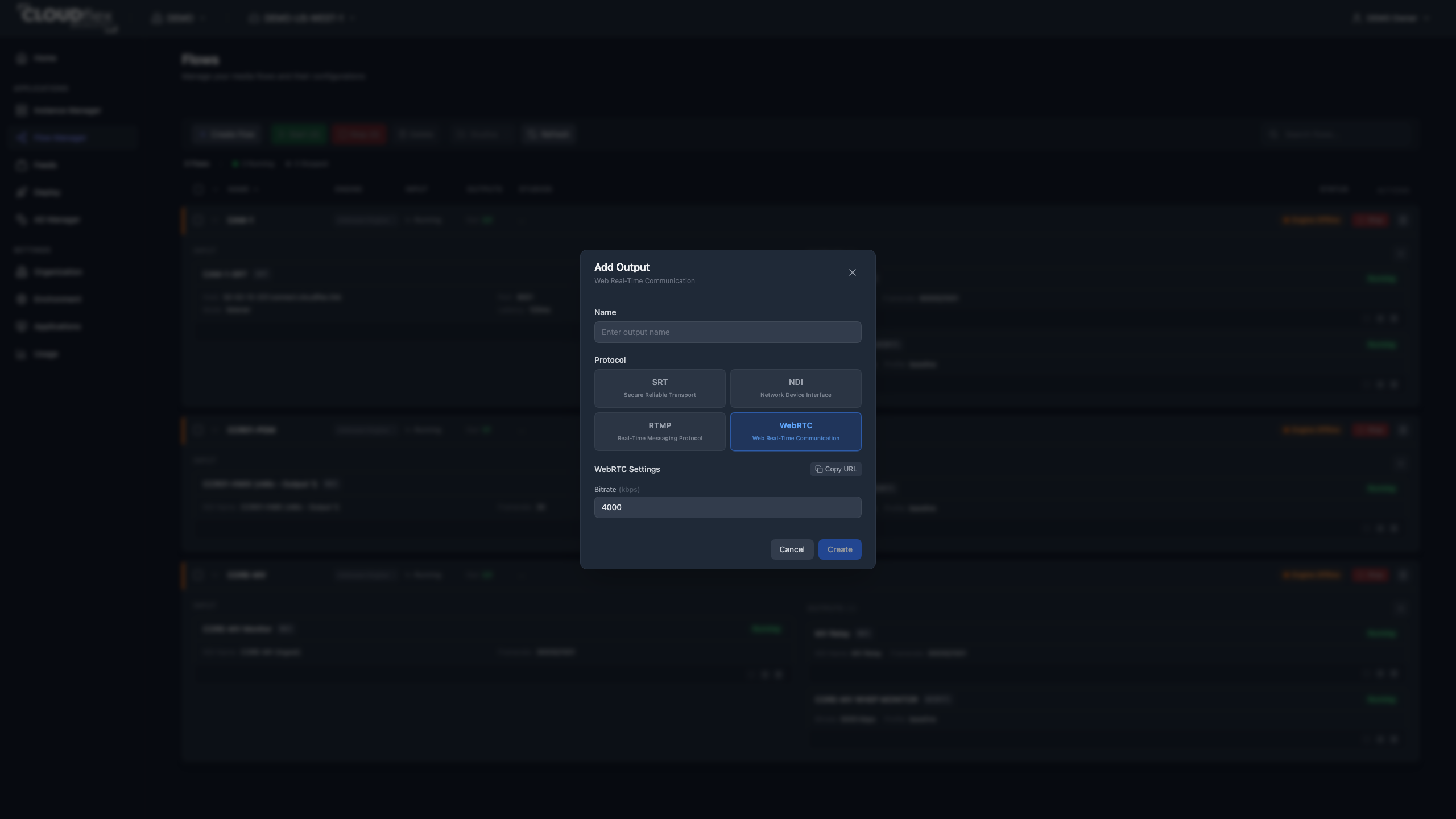
- Select Add Input or Add Output.
- Enter a name and choose a protocol. An existing item’s protocol cannot be changed.
- Complete the protocol fields shown by Studio.
- Select Create or Save Changes.
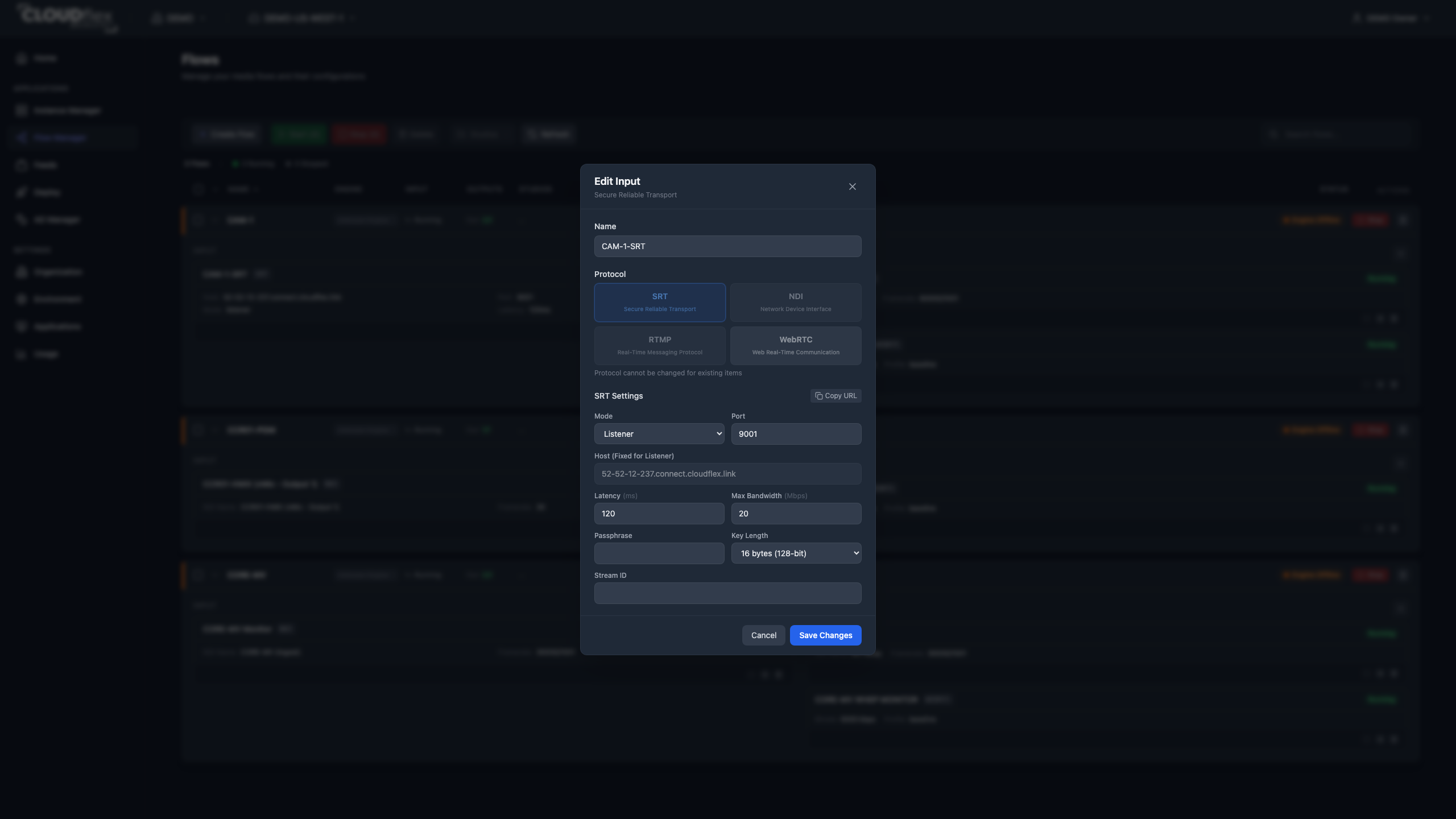
Use Edit settings on an existing input or output to review its current protocol configuration. The protocol is fixed after creation, but the fields for that protocol can still be updated.
Choose a flow type
Section titled “Choose a flow type”Choose the protocol based on where the signal originates, where it needs to go, and how it will be viewed.
| Flow type | Available as | Use it when |
|---|---|---|
| NDI | Input and output | The source and destination are NDI-capable production tools in the same connected production environment. |
| SRT | Input and output | The signal must cross the public internet or another routed network where resilience, configurable latency, or encryption matters. |
| WHEP | Output | Viewers need a low-latency WebRTC feed in a compatible browser or Feed Manager. |
Use NDI to move video between NDI-capable production applications and systems that can discover or reach one another in the production network. It is a good fit for internal handoffs such as sending a source to a switcher, multiviewer, recorder, or another processing tool in the same environment.
Configure the NDI Name so it matches the source you want to receive or the name you want the output to advertise. Select the required frame rate. NDI inputs also expose bitrate and encoding profile controls in Studio.
NDI depends on the environment’s NDI discovery and network configuration. If the named source does not appear, confirm the source name, flow-engine readiness, and NDI discovery path before recreating the flow.
Use SRT for contribution or delivery between locations, cloud environments, or systems connected through the internet. Its latency buffer can recover from some network disruption, with the tradeoff that a larger value adds more delay.
SRT is available for both inputs and outputs. Configure:
- Caller when this endpoint should initiate the connection to a remote host.
- Listener when this endpoint should wait for the other side to connect. Studio fixes the listener host to
0.0.0.0. - Port, Latency, and Max Bandwidth to match the other endpoint and the production network.
Encryption New
Section titled “Encryption ”Set Passphrase and Key Length when the path requires encryption. Both endpoints must use matching values.
Stream ID New
Section titled “Stream ID ”Set Stream ID when the receiving service uses it to identify or route the connection.
Select Copy URL when you need the generated SRT address. Confirm firewall and security-group rules before the production; changing caller/listener mode does not open the required network path.
WebRTC outputs (WHEP) New
Section titled “WebRTC outputs (WHEP) ”Use WHEP for low-latency browser monitoring rather than as a contribution input. In the Flow Manager editor, select WebRTC when adding the output. Studio then generates a WHEP endpoint for that WebRTC output.
Set the output bitrate to a value appropriate for the picture and the viewers’ available bandwidth. After creating the output:
- Select Copy URL to copy its WHEP endpoint.
- Select Copy to new Feed to create a WHEP entry in Feed Manager from the same endpoint.
Copy to new Feed appears only when editing a saved WebRTC output and Studio can generate its WHEP URL. It is not shown while creating the output or when the flow engine has no usable domain.
The flow engine must have a working externally reachable domain before Studio can generate a usable WHEP URL. Test playback from the same kind of network the production viewers will use.
Operate Flows
Section titled “Operate Flows”Start or stop a complete flow from its header. You can also control the input or each output independently. Select multiple flows to use bulk start or stop, and review the confirmation before applying it.
Live input statistics New
Section titled “Live input statistics ”Use the statistics control on a running item to view available live data such as uptime and bitrate. Status mismatches between a flow and its input or outputs are highlighted for attention.