
Connect to instances
Instance Manager Overview
Section titled “Instance Manager Overview”Instance Manager is where operators and engineers start, stop, and connect to the virtual production machines in the active environment. Administrators also use this list to prepare and maintain instances during the production build. See Prepare and maintain instances for those administrative actions.
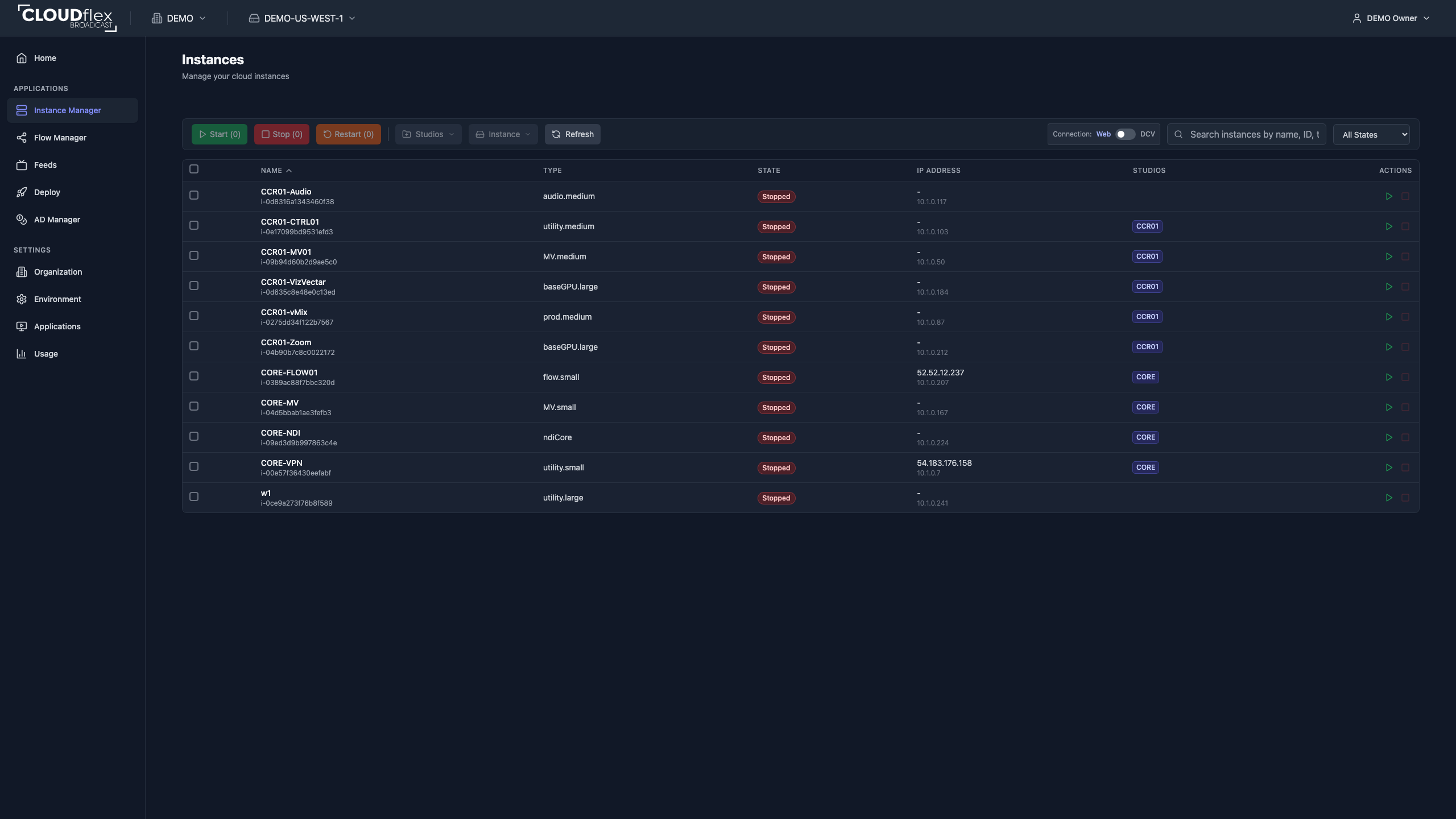
Before taking an action, confirm the active environment and the instance name. Starting an instance creates billable cloud usage. Stopping, rebooting, or resizing a machine can interrupt an active production.
Find an Instance
Section titled “Find an Instance”Use search and the state filter to narrow the list. The table shows the instance name, state, type, IP address, studio assignment, and available actions. Select column headings to sort where available. For an explanation of the public and private addresses and the controls at the right of each row, see Read the Instance Manager list.
States such as pending, stopping, and launching mean the cloud provider is still processing an earlier action.
Start or Stop Instances
Section titled “Start or Stop Instances”- Select one or more instances.
- Select Start or Stop in the action bar, or use the row action for one instance.
- Confirm the action.
- Wait for each instance to reach
runningorstopped.
If AWS capacity is temporarily unavailable, Studio may retry the request in smaller groups. Follow the error guidance if the retry cannot start the instance; another instance type may have better availability.
Connect With NICE DCV
Section titled “Connect With NICE DCV”NICE DCV, now named Amazon DCV, provides a remote desktop session for operating applications on a production instance. The native client is recommended for multi-monitor work and the best interactive performance. A browser connection is useful when you need quick access without installing the client.
Download the native client
Section titled “Download the native client”- Review the official Amazon DCV client prerequisites for your operating system and network.
- Open the Amazon DCV download page.
- Download the client for your local Windows, macOS, or Linux computer. Do not download the server package.
- Install and open the client. Windows users can choose the installable or portable client.
The local computer must be able to reach the DCV service on its configured port. Amazon DCV uses port 8443 by default. Your organization may restrict the required network access.
Open a session from Instance Manager
Section titled “Open a session from Instance Manager”An instance must be running before you connect.
- Choose Web Interface or NICE DCV as the connection type.
- Select the connect control on the instance row.
- For the web interface, use the new browser tab. For NICE DCV, allow the browser to open the installed client.
Reaching the running state does not always mean the DCV session is ready. If the connection does not open immediately after startup, wait and try again.